
Control Setup
Control Maturity Assessment > CMA Set up > Controls
From here you can see all the controls currently within your Abriska environment
To be able to add a new set of controls you will need to create the control groups, add the control types and then the controls themselves.

Step one: creating the control group
Example, ISO 27001:2022 is the control group where the 93 controls are added.
Control Maturity Assessment > CMA Set up > Controls > View Control Groups > New Control Groups
We recommend the control group name is that of the Standard, or the formal name used within your organisation.
By default, Abriska is set up with a maturity model used for ISO 27001 risk assessments. If you would like a different one created, please contact support for guidance.
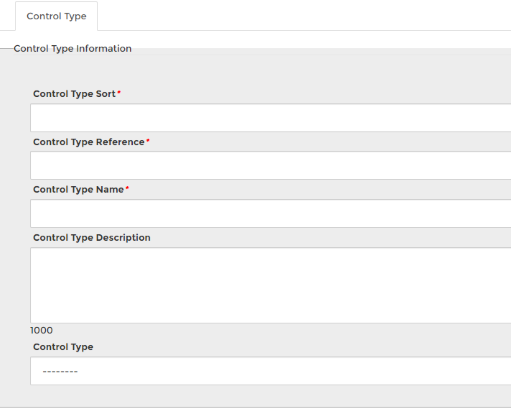
Step two: creating the control types (hierarchy within control groups)
Example, A.5 information security policies above A.5.1 Management direction for the information security etc.
Control Maturity Assessment > CMA Set up > Controls > View Control Types > New Control Types
Step three: creating the controls
Each control is then created and linked against its control group and linked to applicable threats, resources and where applicable other controls.
Control Maturity Assessment > CMA Set up > Controls > New Control
Control > 'View Linked; Controls, Threats, Assets' > tick the checked box to make any changes.
Step four: linking control types to controls
You are then able to open each of the applicable control types and allocate the controls to them.
'View Control Types' > click on the controls with the bracketed numbers) > 'View Related Controls' > tick the controls that you would like to allocate to this control type.
Back to Control Maturity Assessment Setup or Controls