System Setup
UNDER CONSTRUCTION
Organisation Logo
You can upload your organisation logo here, and it will display in the top left of every page whenever anyone is logged into your organisation. This also applies to suppliers when answering a questionnaire.- Maximum file size: 1MB
- Allowed file types: JPEG, PNG
The logo may take 5 minutes to appear after upload. Please refresh your browser or log out and back in if it does not appear after this time.
Dashboard Setup
The home dashboard can be configured to display chosen widgets of summary information. You can learn morePassword Complexity
Notification Setup
Login Settings
Library References
Custom Data Fields
User Role Access
System Messages
System Appearance
System Variables
Users can change the colour theme within Abriska to reflect the organisation colour theme and logo (logos can be uploaded by by URM Support).
System Colours
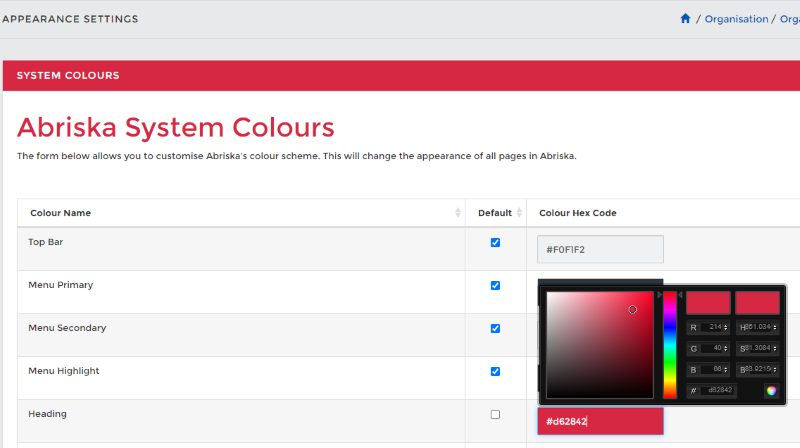
The form allows you to customise the colours of the:
- Top Bar
- Menu Primary and Secondary
- Heading
- Return button
- Submit button
- Confirm button
- Workflow
To Navigate
Left side bar > Organisation > Organisation Setup > System Setup > System Appearance (9th option down)
To change the colour, UNTICK 'Default' and click on the 'Colour Hex Code' box for the named area you wish to change > double click on the colour chart to select a different shade or move the arrows up and down to select a new colour.
Once you have chosen the colour you like, click on the multicoloured circle in the bottom righthand corner of the black box to confirm your selection.
Ensure to click 'Submit' on the left side bar and enjoy the new colour theme on your Abriska account.