
System Setup
UNDER CONSTRUCTION
Organisation Logo
You can upload your organisation logo here, and it will display in the top left of every page whenever anyone is logged into your organisation. This also applies to suppliers when answering a questionnaire.- Maximum file size: 1MB
- Allowed file types: JPEG, PNG
The logo may take 5 minutes to appear after upload. Please refresh your browser or log out and back in if it does not appear after this time.
Dashboard Setup
The home dashboard can be configured to display chosen widgets of summary information. You can learn more at Widgets Explained.If you would like to see widgets or summary information on the home dashboard, please reach out to support@urmconsulting.com.
Password Complexity
Define the rules for user passwords and set when passwords can be changed or reused.If sing sign on (SSO) is employed this will only be available for org admins. To set up SSO please contact support@urmconsulting.com.
Notification Setup
Allows the setting of time-based reminders and flags that will appear throughout Abriska. These notifications can relate to the need to revise documents, unresolved actions and overdue questionnaires or review risks.Users can choose which notifications to turn on. Notifications are shared every Monday via email. Org Admins can select which notifications are set by permission level, however further filtering can be done per user in contact details.
The colours per notification can also be edited by creating new 'Custom Colours' found on the left panel. Once
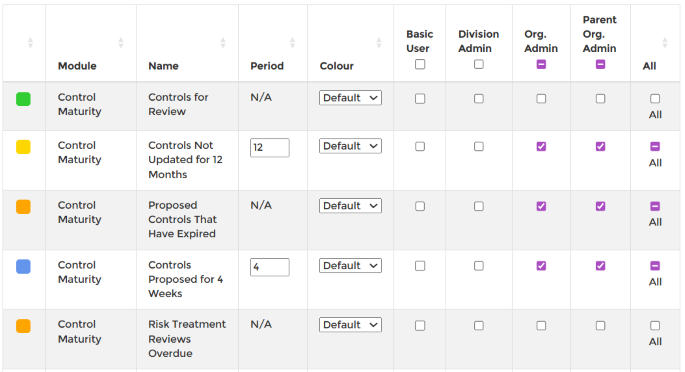
Notification Setup
Login Settings
A login message can be displayed to all users whenever they log into Abriska.
Library References
Rename terminology used within Abriska. If some terms are not listed that you would like to change, please contact support@urmconsulting.com.Custom Data Fields
Edit, add and remove fields for user input.User Role Access
Restrict access of specific features to different user roles.System Messages
Change the content of emails and other messages generated by Abriska.System Appearance
Customise the application's colour scheme. Users can change the colour theme within Abriska to reflect the organisation colour theme and logo.The form allows you to customise the colours of the:
- Top Bar
- Menu Primary and Secondary
- Heading
- Return button
- Submit button
- Confirm button
- Workflow
To change the colour, untick 'Default' and click on the 'Colour Hex Code' box for the named area you wish to change > double click on the colour chart to select a different shade or move the arrows up and down to select a new colour.
Once you have chosen the colour you like, click on the multicoloured circle in the bottom righthand corner of the black box to confirm your selection.
Ensure to click 'Submit' on the left side bar and enjoy the new colour theme on your Abriska account.
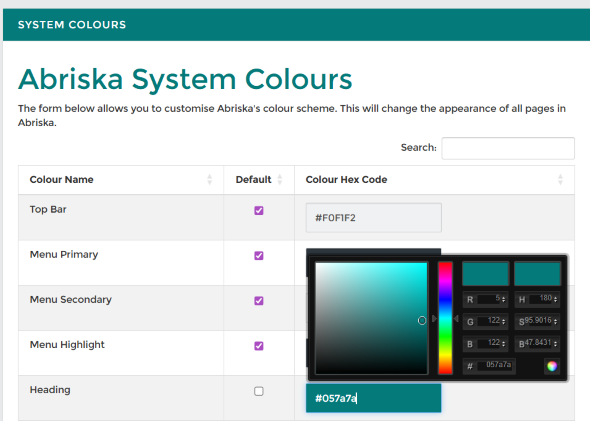
System colour change example
System Variables
Alter how data is displayed within Abriska.