
Using the Enterprise Risk Register
Risk Register Overview
The 31000 enterprise risk register allows users to identify or identify and analyse a risk depending on the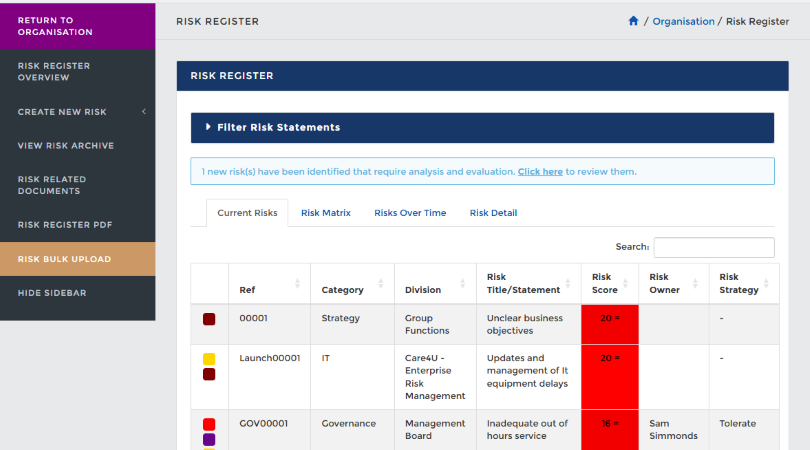
Risk Register Key
The Risk Register within the ERM module contains different options within the Risk Detail tab.The Risk Register Key provides the ability to filter by the following options:
Comparison date: What date you wish to compare against
Risk Indicators: Which warnings you wish to review
Risk Categories: Which category you wish to assess (These would have been set with RA Management > Configuration)
Risk Strategy
Which strategy answer you which to review (To edit the titles go to RA Management > Configuration)
Risk Delta Filter depending on how Unchanged or New risks, the icons appear in the risk score box for each risk.
.PNG)
Risk Detail ERM
The ERM module module highlights different areas of the raised risk. Below is a brief explanation of the various tabs, which differ from the Information Security 27001 Risk Register.
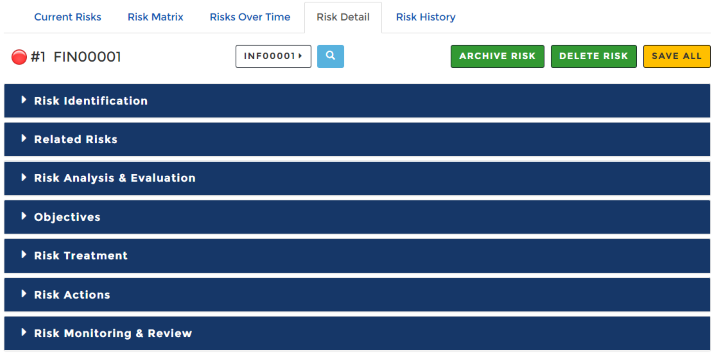
- Risk Identification -
- Risk Components - Links back to key items identified in the risk.
- Related Risks - Risks can be linked to each other to identify parent/child risks.
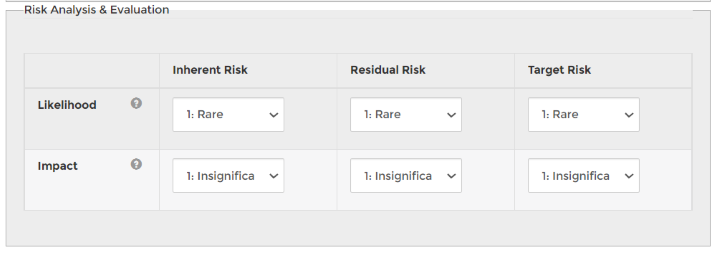
- Risk Analysis & Evaluation - The risk scores can be updated when there is a relevant change to the risk. All changes are tracked in Risk History. For a further explanation, see Risk Scores.
- Objectives - This allows you to link a risk to a business objective, multiple risks can be link to an objective and this will be visible within the organisation risk report. See more on Additional Organisation Setup.
- Risk Treatment - The treatment of risk is determined by which strategy is taken. See further information on Risk Strategies
- Risk Actions - Actions are based on the risk and
whawhat remediation needs to bepuput in place. In Abriska 27001,acionsactions are based around ISO 27001 Annex A controls and improvements. For a further explanation, see Risk Actions - Risk Monitoring & Review - Comments to add outside of action status, here you
ancan select if a comment is important and this will be highlighted with reporting.
Risk Monitoring & Review permission access
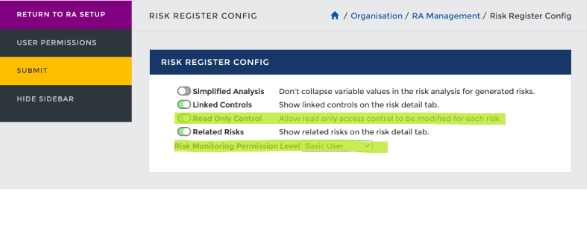
Organisation admins can now change who can view, change and add said comments.Go to > Risk Assessment > RA Management > Configuration > Risk Register Config > select the user from which you would like contacts to have access to risk monitoring. Users of that level and above will be able to view, change and add comments.
Risk Register overview page
You can navigate here from the Risk Register > left side bar > 'Risk Register Overview'. The page gives a more detailed view of what some of the widgets on the main dashboard show.Creating a new Risk
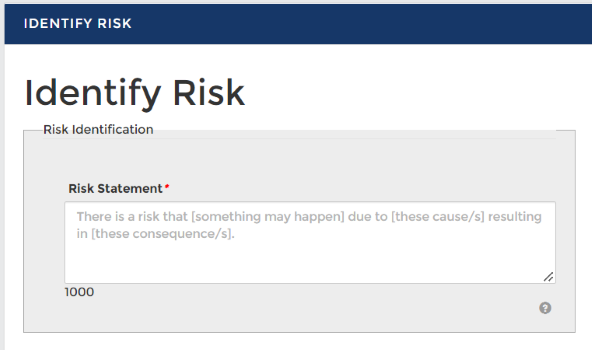
To create a newOption 1: Identify Risk
Used to identify a Risk with a description to then be assessed by Org Admin.
Option 2: Identify and Analyse Risk
Used to identify and assesassess a risk to the business filling in the following information. You must select the Categorycategory first, this will then generate a Riskrisk Reference.reference.
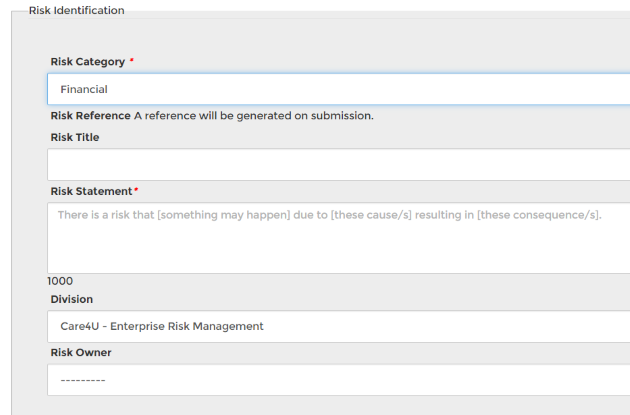
Depending on what category is selected there may be a prompt to select which controls help to mitigate this risk.
The final step in adding the risk is to evaluate the
Associating assets to a risk
Upon request, at no additional charge, the asset register feature can be enabled to allow you to associate assets to a risk. This is a separate list feature that sits under the risk identification tab in the risk register. It allows you to clearly identify specific assets that can be impacted by the risk.Video
How to add enterprise risks to the risk register for Abriska 31000
Read Only Risks
This functionality allows identified and analysed risks to be shared with other divisions.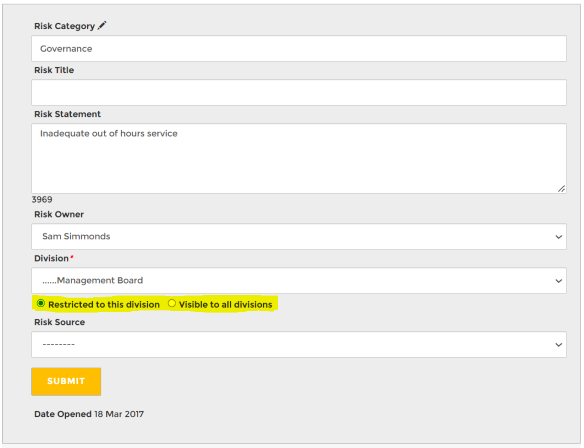
Risk owners and organisation admins can share a risk to all divisions allowing them to be aware of other risks and instead of producing a new similar risk, this can be copied and altered to suit another divisions analysis (likelihood + impact).
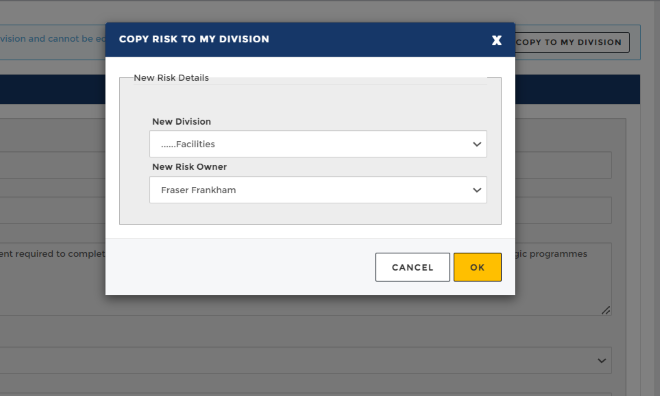
To copy a risk, click 'Copy to My Division' in the blue box at the top of the page when viewing the risk. This will open a modal window asking you to select the division to copy to and set the risk owner. Upon submission you will be taken to that new (copied) risk where you can then make edits to the analysis and evaluation, treatment and actions.
All copies of a risk will automatically be linked so that the original and
A new notification will be added to highlight how many shared risks there are.
How to activate Read Only Risks
Organisation admins can turn on this feature from: Risk Assessment > RA Management > Configuration > Risk Register Config. Turn the radio toggle to green for 'Read Only Control'.
Back to Enterprise Risk Management